By Camren Majors · Reviewed by Verito QuickBooks Hosting Specialists · Updated June 2026
If you are still choosing between Desktop and Online, start with our QuickBooks Online vs Desktop comparison, then come back to the install.
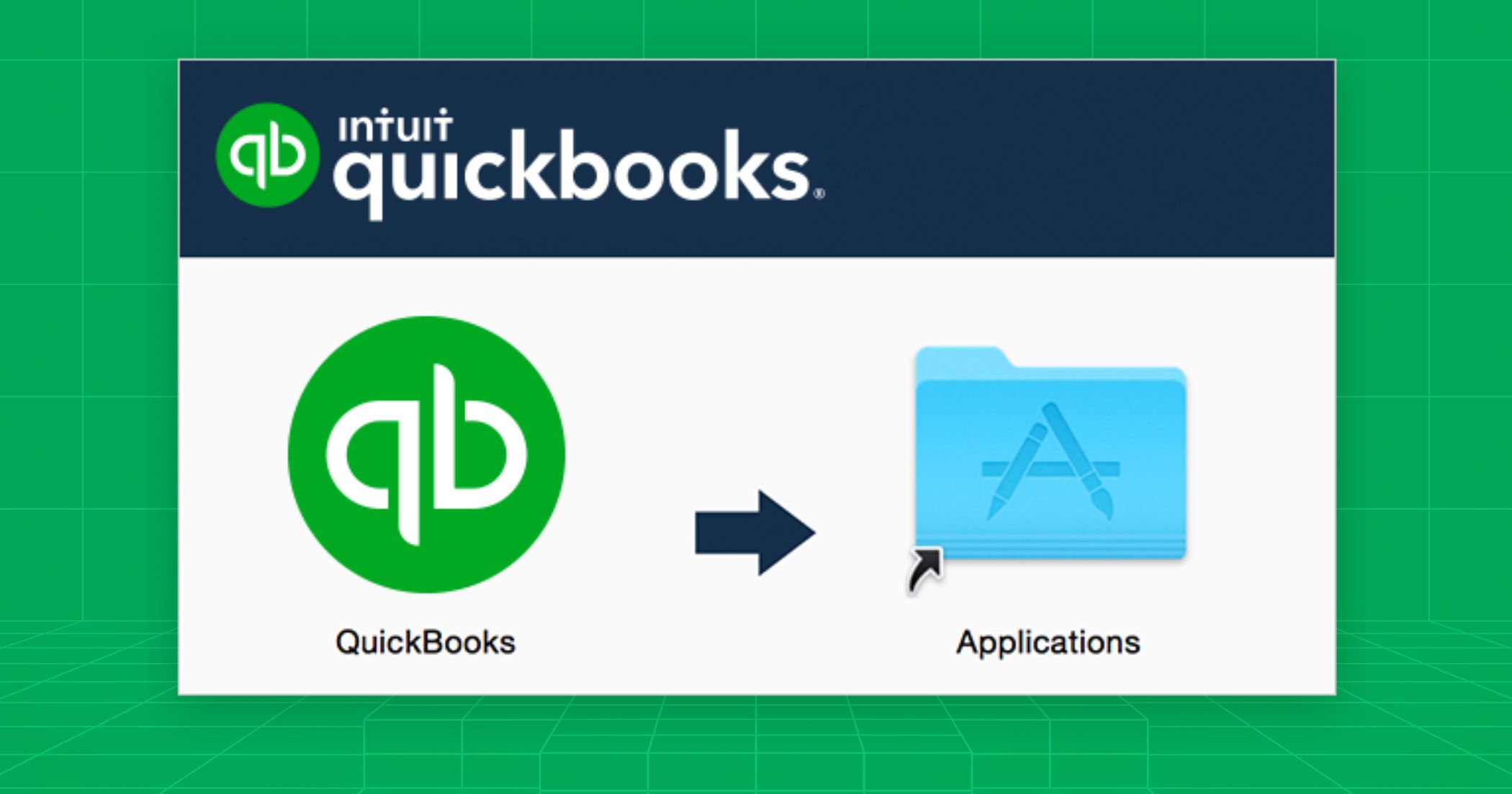
Download QuickBooks Desktop only from Intuit’s official Downloads & Updates page, never a mirror. On Windows, run the installer, pick Custom and Network Options, and choose the right role for the machine. On Mac, drag the app to Applications. Then activate with your product and license number and open your company file.
Key takeaways
- Download from Intuit’s official Downloads & Updates page. No mirrors, no third-party links.
- On Windows, use Custom and Network Options to set each machine as a workstation, a workstation plus server, or a server only.
- On Mac, drag the app into Applications, then register on first launch.
- Activate from the Help menu (Windows) or File > Register (Mac). Press F2 for your product and license number.
- Host the company file on the server only. Scan its folder with Database Server Manager for multi-user.
Where Do You Download QuickBooks Desktop?
Download QuickBooks Desktop from Intuit’s official Downloads & Updates page, which serves both Windows and Mac. Select your country, product edition (Pro, Premier, Enterprise, or Mac Desktop), and year, then save the installer locally. Skip mirrors and third-party links. They cause mismatched builds that break activation and patching later.
Everything starts at Intuit’s Downloads & Updates page. It maps your exact edition and year to the correct installer and update stream, so you avoid the build mismatches that trigger activation failures down the line.
On Windows, open the Downloads & Updates page, choose your product (Desktop Pro, Premier, or Enterprise) and year (such as 2024 or 2026), then download and save the file. If you also need the latest maintenance release, install that update after setup finishes.
On Mac, open the same page, select QuickBooks Mac Desktop with your year, and download the build. Current QuickBooks Mac Desktop runs on macOS 12 Monterey or later, on Intel or Apple silicon.
If you can’t find your license or installer, sign in to CAMPs, Intuit’s Customer Account Management Portal. It shows your purchases, product and license numbers, and direct downloads tied to your account. Current QuickBooks Desktop releases run on Windows 10 or Windows 11, 64-bit. Keep your OS updated for a clean install and activation.
What Should You Check Before You Install?
Before you install, confirm four things: admin rights on the machine, your product and license number (or CAMPs access), a stable internet connection for download and activation, and your multi-user plan. If the file will be shared, decide the host machine and where the company file will live before you start.
Run this quick checklist first:
- Admin rights: sign in with an administrator account on the machine where you’re installing.
- License info ready: have your product and license number on hand, or access to CAMPs.
- Stable internet: needed for download, activation, and updates.
- Multi-user plan: if several people will share one file, choose the host machine and the file’s location before you install.
What’s the Difference Between Express and Custom and Network Options?
Express installs QuickBooks on a single computer with default settings. Custom and Network Options lets you assign a role: workstation only, workstation plus server, or server only with Database Server Manager. Use Custom and Network Options for any shared or multi-user setup. It controls whether the machine hosts company files for others.
Express is fine for one computer that no one else connects to. The moment a second person needs the same company file, choose Custom and Network Options instead. That screen is where you tell QuickBooks how the machine fits into your network, which decides what gets installed.
| Install role | What it installs | Use it on |
|---|---|---|
| Workstation only | QuickBooks Desktop | A normal PC that opens files stored locally or on a server share |
| Workstation + server | QuickBooks plus Database Server Manager | A PC people work on that also hosts the shared company file |
| Server only | Database Server Manager only | A dedicated server that hosts the file but isn’t used for daily bookkeeping |
Keep roles clean. Only the server should host multi-user access. Workstations should never host. That single rule prevents most multi-user conflicts later.
How Do You Install QuickBooks Desktop on Windows?
Locate the downloaded installer and open QuickBooks.exe. Accept the license agreement, then select Custom and Network Options so you can pick the right role. Choose your install location, finish setup, and open QuickBooks to confirm it launches. A clean Windows install takes a few minutes when you choose the correct role.
Follow these steps in order and stick to Intuit’s defaults unless your IT policy says otherwise:
- Start the installer. Open the QuickBooks.exe file you downloaded. Accept the license agreement and continue.
- Choose the install type. When prompted, select Custom and Network Options. This exposes the workstation and server roles in the table above.
- Pick the role for this computer based on whether it hosts the company file for others.
- Select the location. Accept the default path, or choose Change the install location if your firm standardizes paths, then begin installation.
- Verify the launch. When setup finishes, select Open QuickBooks to confirm it opens on this PC.
If Windows blocks the install or the installer fails, download the QuickBooks Tool Hub, run the QuickBooks Install Diagnostic Tool from Installation Issues, restart Windows, and retry. That sequence resolves most missing-component problems.
For multi-user environments, do two post-install checks on the server. Open Database Server Manager and scan the folder that holds your .QBW files, which sets the Windows firewall rules workstations need. Then, in the server copy of QuickBooks, confirm you see Stop Hosting Multi-User Access, which means hosting is on. Do not enable hosting on any workstation.
How Do You Install QuickBooks Desktop on Mac?
Download QuickBooks Mac Desktop from Intuit’s Downloads & Updates page, open the .dmg, and drag the QuickBooks icon into the Applications folder. Open it from Applications and allow access when macOS prompts for Documents, Desktop, Downloads, or network volumes. Activation happens on first launch. Your Mac needs macOS 12 Monterey or later.
The Mac install is short:
- Download and place the app. Open the .dmg file, then drag the QuickBooks icon into Applications. Open Applications and confirm the app is there.
- First launch. Open QuickBooks from Applications. If macOS asks for permission to reach Documents, Desktop, Downloads, or network volumes, allow it so QuickBooks can read and write your company files. If it doesn’t open on the first try, restart the Mac and try again.
- Update it. After install, check for product updates so you’re on the latest maintenance release for your year.
QuickBooks Desktop for Mac supports multi-user mode on a local network. You enable it from the host Mac after install and invite users from there. Full multi-user steps are below. If the .dmg won’t mount or the app won’t copy, close other apps, re-download the installer from Intuit, and repeat the drag-to-install.
How Do You Activate QuickBooks Desktop?
Activation links your license to your Intuit Account and finishes setup. On Windows, open Help > Activate QuickBooks Desktop and sign in. On Mac, open File > Register QuickBooks and enter your product and license numbers. If QuickBooks doesn’t prompt you automatically, start activation from those menus at any time.
On Windows, open QuickBooks, go to Help > Activate QuickBooks Desktop, then sign in with your Intuit Account (or create one on the activation screen) and verify your info.
On Mac, open QuickBooks, choose File > Register QuickBooks, enter your numbers, then register online or by phone and follow the steps.
To find your product and license number, press F2 inside QuickBooks to open the Product Information window. If you can’t open the app, sign in to CAMPs and select View details for your purchase.
To change a license on the same machine without reinstalling, go to Help > Manage My License > Change My License Number, enter the new number, and finish. This is the fix when you typed the wrong license or your firm reassigned seats.
If activation fails, confirm your Windows date and time, check that you have a stable internet connection, and make sure security software isn’t blocking QuickBooks. Then retry from Help > Activate QuickBooks. If a validation code or sign-in error persists, follow Intuit’s activation troubleshooting guide.
How Do You Open or Move Your Company File?
Your data lives in a .QBW company file. Backups are .QBB files. On Windows, open files from File > Open or Restore Company, and restore a .QBB the same way. To move QuickBooks to a new PC, use the Migrator Tool with a USB drive and a one-time password. Always keep a fresh backup first.
Know which file type you have before you open, restore, or move anything. Then match the task:
- Open an existing file (Windows): File > Open or Restore Company > Open a company file, choose your .QBW, and sign in.
- Restore from a backup (Windows): File > Open or Restore Company > Restore a backup copy > Local Backup, browse to the .QBB, pick a save location, and complete the restore. Don’t save over your current file.
- Open or restore on Mac: File > Open Company, select your file, and sign in. To restore, open the .QBB backup in QuickBooks for Mac and let it finish any update prompt.
To move QuickBooks to a new Windows computer, use the Migrator Tool if you’re a single user moving QuickBooks and up to three company files. On the old PC, go to File > Move QuickBooks to another computer, create the one-time password, and choose a USB drive. On the new PC, plug in the USB and follow the prompts, then activate. As an alternative, find your file path with F2 and copy the QuickBooks data folder to the new machine.
QuickBooks for Windows and Mac use different file formats, but you can convert in either direction with Intuit’s built-in tools. Windows to Mac: open the file as admin, then File > Copy Company File for QuickBooks Mac, and open the result on the Mac. Mac to Windows: in QuickBooks for Mac, use File > Export > To QuickBooks for Windows, then restore it on the PC. Review Intuit’s list of items that don’t convert before you switch.
When you upgrade to a new year, opening an older .QBW in a newer QuickBooks prompts an update. Sign all users out, keep a backup, open the new QuickBooks, then File > Open or Restore Company > Open a company file and follow the prompts. For hosted or server setups, Intuit recommends moving the file local for the update, then returning it to the share.
How Do You Set Up Multi-User Access?
Multi-user mode lets several people open one company file at once. On Windows, install Database Server Manager on the host, scan the folder holding the .QBW, confirm the server is hosting, then open the file from each workstation. On Mac, open the file on the host and choose File > Enable Multiuser Mode on the same network.
On Windows, you need a computer to act as the server that stores the file and stays on during work hours, QuickBooks installed on the server and each workstation, and Windows admin rights on the server. Then:
- Install Database Server Manager. On the server, run setup, choose Custom and Network Options, and pick the server role. This installs Database Server Manager.
- Scan the folder. Open Database Server Manager and scan the folder that holds your company file. The scan sets Windows firewall rules for QuickBooks automatically.
- Confirm hosting. On the server’s QuickBooks, check that you see Stop Hosting Multi-User Access. If you see Host Multi-User Access instead, turn it on.
- Check services and permissions. Confirm the QuickBooksDBXX database service and QBCFMonitorService are running, and that the QBDataServiceUserXX account has permission to the company-file folder.
- Connect workstations. On each, select File > Open or Restore Company, browse to the server share, and check Open file in multi-user mode.
Test by opening the file from two workstations at once. If you get an H-error, see the next section.
On Mac, open the company file on the host Mac, choose File > Enable Multiuser Mode (you’ll see a checkmark), and other Macs on the same network can open the shared file. Mac multi-user works only on the same local network. You can’t share a Mac company file with remote workstations over the internet this way. For anywhere access, host the Windows edition in the cloud instead.
“The ease of working from home and on the road with Verito is incredibly valuable to me. I am impressed by their outstanding customer support, as issues are resolved almost instantly, even during off-hours. I appreciate how seamlessly it integrates with Drake Tax and QuickBooks, enhancing my workflow without any hassles.”
Tina J., Owner, Tina P James CPA PLLC · G2, Oct 2025
How Do You Fix Common Install and Multi-User Errors?
Start with the QuickBooks Tool Hub. Run Quick Fix my Program for launch issues, and the Install Diagnostic Tool for install errors 1603 and 1904. For multi-user H-errors (H101, H202, H303, H505), confirm hosting is on at the server only, rescan the folder with Database Server Manager, and check that services are running.
Work from the official tools first. Most problems clear without risky workarounds.
| Problem | First fix | Tool |
|---|---|---|
| QuickBooks won’t launch | Run Quick Fix my Program | Tool Hub > Program Problems |
| Install error 1603 | Run Install Diagnostic Tool, restart, update Windows, retry | Tool Hub > Installation Issues |
| Install error 1904 (file failed to register) | Run Install Diagnostic Tool, reboot, retry | Tool Hub > Installation Issues |
| Installed but unstable | Repair QuickBooks Desktop, then update | Tool Hub |
| Multi-user H101/H202/H303/H505 | Confirm server-only hosting, rescan folder, check services | Tool Hub > Network Issues |
| Company file won’t open | Move file to a local folder, run File Doctor | Tool Hub |
For H-errors, the connection between workstation and server is blocked. In order: confirm hosting is on at the server and off at all workstations, rescan the company-file folder in Database Server Manager to reset firewall rules, confirm QuickBooksDBXX and QBCFMonitorService are running on the server, then reopen the file from the server’s UNC path and retest.
For a company file that opens slowly or won’t open on Windows, update QuickBooks, try opening a sample file, move the file to a local folder, and run File Doctor from Tool Hub. Skip the local-install headaches by running QuickBooks Desktop on a hosted server.
On Mac, re-install cleanly by re-downloading the .dmg and dragging the app to Applications. Grant the permission prompts on first launch. If a file won’t open, try a recent backup. If services on Windows won’t stay running after tool-based repair, that usually points to damaged services or permission conflicts that need IT review.
Should You Install QuickBooks Locally or Host It in the Cloud?
Both work. A local install fits one office with a few users, a reliable network, and someone comfortable managing updates, backups, and permissions. Cloud hosting fits firms that need secure access from multiple locations, central daily backups, all-day multi-user without peer-to-peer hiccups, and managed patching that doesn’t interrupt billable work.
The right choice depends on how many people use QuickBooks, where they work, and how much IT help you have.
| Factor | Local install | Cloud hosting |
|---|---|---|
| Best for | One office, few users, stable LAN | Multiple locations or remote work |
| Access from home | VPN you manage | Secure access from any device |
| Backups | You run them | Central, daily |
| Multi-user all day | Peer-to-peer, can hiccup | Consistent speed on a server |
| Windows updates | You patch and reboot | Managed, off-hours |
| Who maintains it | You or your IT | The hosting provider |
A local install is fine when files live on a single workstation or a simple on-prem server, remote access is rare, and you’re comfortable owning updates and backups. Hosting is the better fit when you need anywhere access without managing VPNs, want quick recovery if a PC fails, or run multi-user all day and want steady performance.
If you’d rather run QuickBooks Desktop from any device with your team, Verito hosts QuickBooks (all versions) on dedicated private servers built for tax and accounting firms. You get hosting designed to support IRS Pub 4557 and FTC Safeguards requirements, daily backups, white-glove migration in 1 to 2 weeks, and sub-60-second human support from techs who know the software. More than 1,000 firms run on it, with 100% uptime since 2016. Learn more about QuickBooks hosting.
“I originally switched to Verito from Rightnetworks due to persistent downtime issues. In contrast, transitioning to Verito was an extremely smooth process and the team was incredibly helpful and responsive. Verito stands out because it is a reliable platform with minimal downtime.”
April W., Owner, AAA Business Services LLC · G2, Oct 2025
Which Windows and macOS Versions Does QuickBooks Desktop Support?
Current QuickBooks Desktop releases support Windows 10 and Windows 11, 64-bit, on workstations. For Windows Server in multi-user setups, supported versions vary by year but commonly include Server 2016, 2019, and 2022. QuickBooks Desktop for Mac runs on recent macOS versions on Intel and Apple silicon. Confirm the exact list on Intuit’s site before upgrading.
Keep your operating system current. Out-of-date Windows or macOS builds are a frequent cause of install and activation problems, and an OS that has fallen out of support won’t run the newest QuickBooks year. Check Intuit’s published system requirements for your specific edition and year before you upgrade hardware or the OS, especially for a multi-user server.